A good domain name is short, easy to remember and fits your brand. It is how people find your website, and search engines treat it as part of your site's identity. You can come up with a name through keyword research, but another way is to look for a name that was already registered and has now expired. ExpiredDomains.net is the tool most domain hunters use for that.
This guide shows you how to find expired domains with ExpiredDomains.net, step by step: how to sign up, what the domain lists mean, how to use the filters, how to save a search and which extra tools are worth knowing.
Quick start: find an expired domain in 5 steps
- Create a free account and confirm your email address.
- Open Deleted Domains and choose a list (for example Pending Delete for domains that are about to drop).
- Narrow the list with filters: keywords, domain age, TLD, backlinks.
- Check the history of every domain you like before you buy it.
- Register the domain at a registrar, or backorder it if it has not been released yet.
The rest of this article explains each step in detail.
What is ExpiredDomains.net?
ExpiredDomains.net is a domain search engine for domains that have expired, are about to be deleted or are for sale. It collects domains from many sources in one place and lets you filter them by name, age, TLD, SEO metrics and more. Domain investors, SEO professionals and anyone looking for a good name use it to analyse a domain's past performance, judge its potential value and decide whether it is worth registering.
How do I sign up?
Fill in the registration form. After you submit it, you receive a verification link by email. Confirm that link, then sign in from the Login page.
ExpiredDomains lists
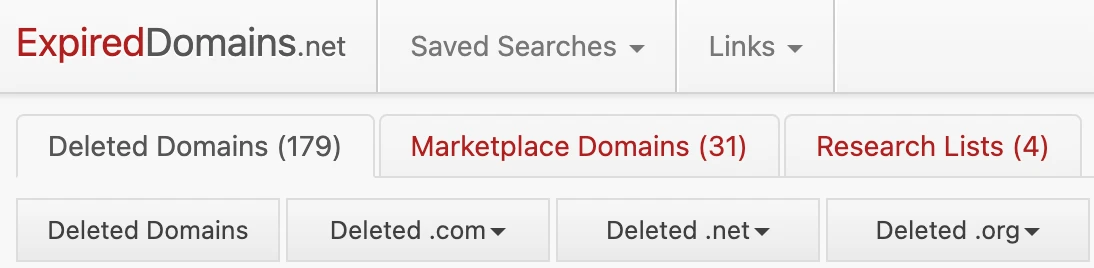
The domain lists are divided into 3 groups:
- Deleted Domains: filter and search for domains that have been dropped or are about to be.
- Marketplace Domains: lists from domain marketplaces.
- Research Lists: ranking lists of well-known websites, published by different organisations.
Each group is explained below, so you can jump to the one you need.
Deleted Domains
The Deleted Domains group lists domains that were registered before and have been dropped, and domains that will be deleted soon. Filter these lists to find a domain that suits you, then register it at a registrar.

There are 4 main lists in this group:
1) Deleted Domains: all deleted domains. Filter them to find the domain you want. Remember that someone else owned these domains before, so always check the history of a domain first.
2) Caught Domains: domains that were caught by someone after they dropped and are now offered for sale on domain sales platforms such as Sedo. Use the filters to set the domain and the price range you want.
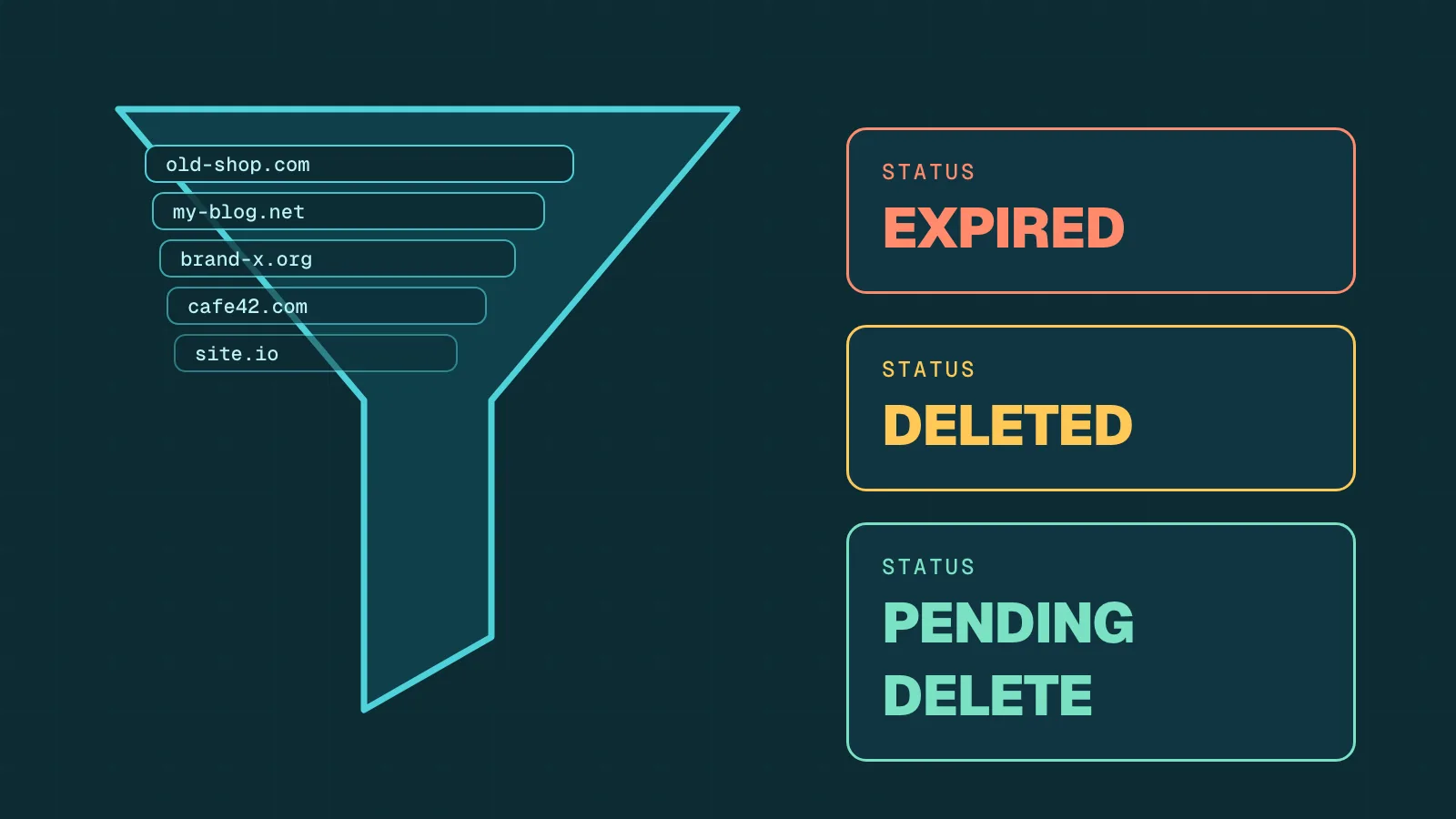
3) Pending Delete: domains that are about to be deleted. This is one of the lists domain investors use most, because it shows you what will become available soon. If a domain has high value, you can improve your chances of getting it by backordering it.
4) Watchlist: click the ☆ icon next to a domain to add it to your watchlist. This lets you follow the domains you care about, and you can filter the list as well.
To learn when a domain gets deleted and how that process works, read Domain Life Cycle Explained.
Marketplace Domains
The Marketplace Domains group contains lists of domains that are for sale on different domain sales platforms. Browse these lists to find a domain sale that suits you.

Research Lists
The Research Lists group is an archive of general and custom domain lists compiled with different criteria. Here you can find the ranking lists of tools that rank websites, such as Majestic Million, Alexa Top Websites, Dmoz and Yandex Catalog.

Saved searches
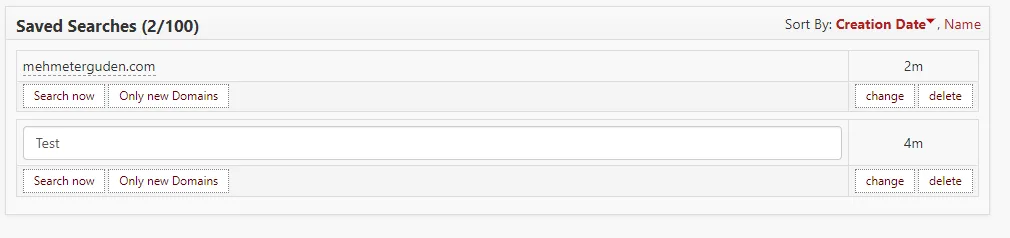
When you have a filter that works, click the save icon next to the filter section to store it. You can run your saved searches again at any time in the Saved Searches section.
For each saved search:
- Search now lists all the domains that match the search again.
- Only new Domains lists only the domains that have appeared since your last search.
- Change lets you edit the filter.
Filters
The filter is the most powerful feature of ExpiredDomains.net for domain investors and domain seekers. It lets you find domains that match your criteria and shrink a huge list to the few names that matter.
Common filters
In the Common section you can include or exclude words, and filter by domain age, expiry time, language and more.
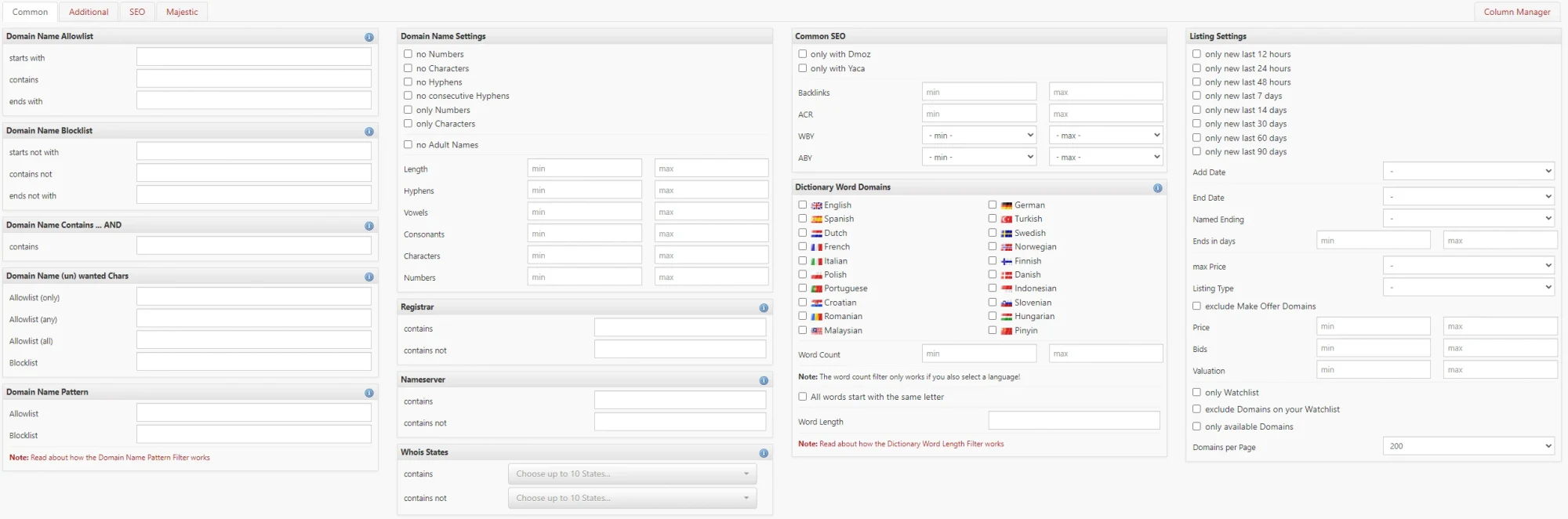
Domain Name Allowlist: lists domains that start with, contain or end with the keywords you choose.
Domain Name Blocklist: removes domains that start with, contain or end with the keywords you choose.
Things to keep in mind for the allowlist and blocklist filters:
- You can enter up to 30 keywords per filter.
- Keywords are combined with "and" automatically. You do not need to type "and".
- The minimum keyword length is 2 characters, and 1 character for start/end.
Example: if you enter "mehmet can erguden", the list contains the domains that contain (or do not contain) all of mehmet, can and erguden.
Domain Name Contains … AND: lists domains that contain a specific word or phrase.
Things to keep in mind:
- You can enter up to 30 keywords per filter.
- Keywords are combined with "and" automatically.
- The minimum keyword length is 2 characters.
Example: if you enter "mehmet erguden", the list also includes domains such as mehmet123erguden456.com, mehmeterguden1234, 12345mehmeterguden and 123mehmet456can78erguden9.
Domain Name (un)wanted Chars: removes domains that contain characters you do not want in a domain.
Things to keep in mind:
- You can separate characters with a space, but you do not have to. Typing "M E H M E T" means the same as "MEHMET".
- This filter only works with single characters or numbers.
- The order and the number of characters do not matter.
- You can define a list of characters the domain must consist of, or numbers it must not contain.
Domain Name Pattern: lists domains that follow a specific pattern. Each letter has a meaning:
| Letter | Meaning |
|---|---|
| C | Consonant (BCDFG…) |
| V | Vowel (AEIOU) |
| L | Letter (any character) |
| N | Number (0-9) |
| P | ChiP – China Premium |
| W | West Premium |
| - | Hyphen |
| * | Anything |
| D, E, F, G | Digit repetition |
Things to keep in mind:
- You can also use lower case letters and numbers to set a character or number at a specific position.
- You can enter 30 patterns per filter.
- Leave a space between the patterns.
Domain Name Settings: configuration settings related to the domain name.
Registrar: lists the domains at a registrar you type in. To add more than one registrar, separate them with a comma (,) instead of a space.
Nameserver: lists the domains on a nameserver you type in. To add more than one nameserver, separate them with a comma (,) instead of a space.
Whois States: the status of the domain record. Select which state codes the domains should have. State names can differ by TLD, so select the right state code for the TLD you are looking for.
Common SEO: the settings most used in SEO work. Here you can filter by the first registration date, the last registration date and the number of backlinks.
Dictionary Word Domains: choose in which language the domain should contain words.
Listing Settings: settings for how the list is shown. You can also filter by the sale price of a domain, the date the domain becomes available and the number of domains on each page.
Additional filters
Most people look at .com domains first, but some projects need other TLDs (Top Level Domains). For example, .edu fits a school better and .org can fit an organisation better. The Additional section lets you filter by TLD.
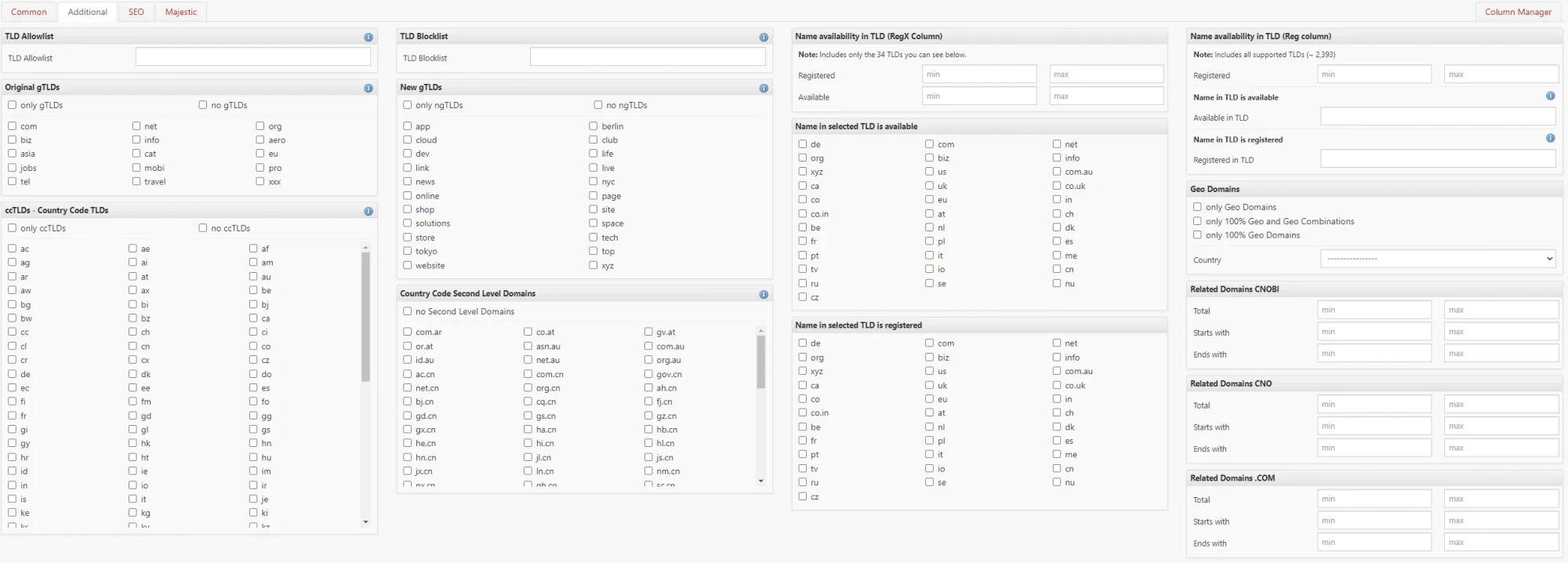
| Entry | What it includes |
|---|---|
uk |
.uk and all second-level .uk TLDs |
*.uk |
all second-level .uk TLDs, but not .uk |
co.uk |
only co.uk (.co.uk works the same way) |
.uk |
only .uk (without any second-level .uk TLD) |
gtld |
only gTLDs |
cctld |
only ccTLDs |
ngtld |
only ngTLDs |
SEO filters
The SEO section lets you filter domains by important SEO data such as backlinks, keyword usage and traffic. Set a minimum and a maximum value for each of them.

Majestic filters
The Majestic section works like the SEO section: you choose minimum and maximum values for data such as the number of external and internal links, so you only see domains in the range you want.

Account settings
Profile
You can change your name, email address and password in the Profile section.
Settings
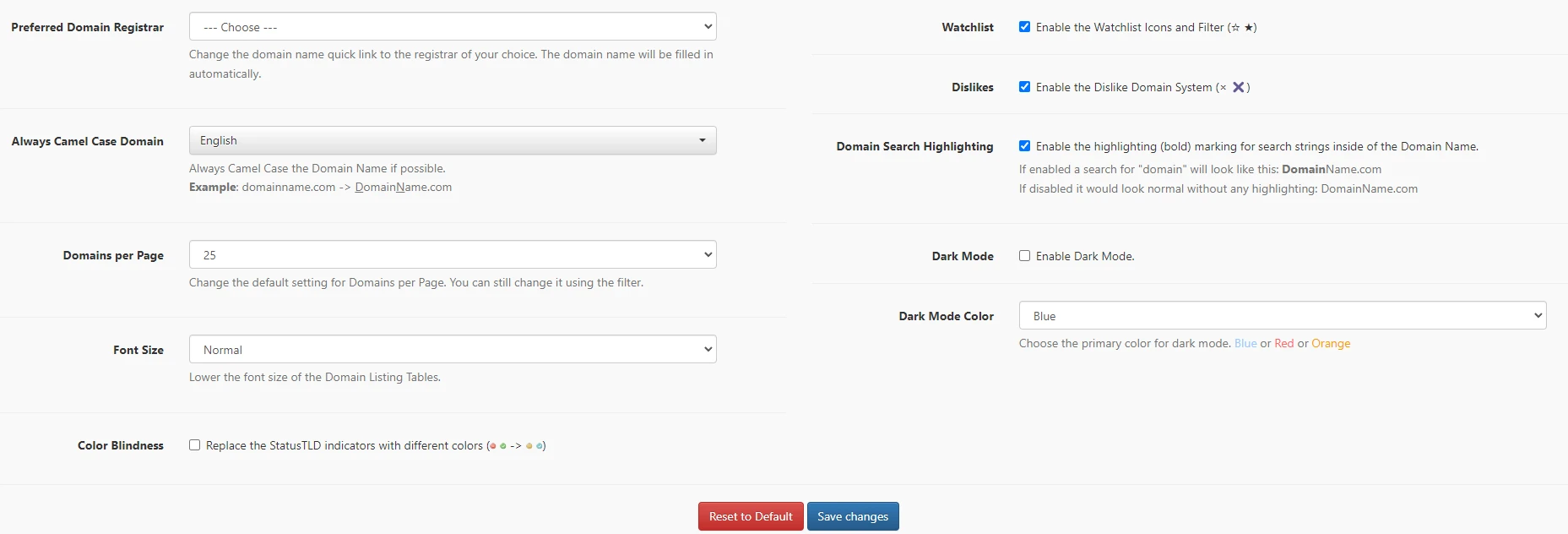
- Preferred Domain Registrar: choose your registrar. The quick link next to each domain then goes straight to that registrar.
- Always Camel Case Domain: when enabled, a domain that contains a word of your chosen language is shown in Camel Case. For example, "mehmeterguden.com" is shown as "MehmetErguden.com".
- Domains per Page: set how many domains are shown on each page. The default is 25. You can also change this number while you search with filters.
- Font Size: change the font size of the domain tables.
- Color Blindness: replaces the status and TLD indicator colors with colors that are easier to tell apart.
- Watchlist: adds the watchlist icons (☆/★) and a filter to the domain lists, so you can mark domains and follow them.
- Dislikes: mark domains you are not interested in so you can exclude them from your results.
- Domain Search Highlighting: highlights the search string inside a domain in bold. If you search for "Mehmet", the matching part of "MehmetErguden.com" is shown in bold.
- Dark Mode: enables a darker color scheme.
- Dark Mode Color: when Dark Mode is on, choose the primary color of the interface.
Set these options to your taste and the site becomes faster to use for domain search and management.
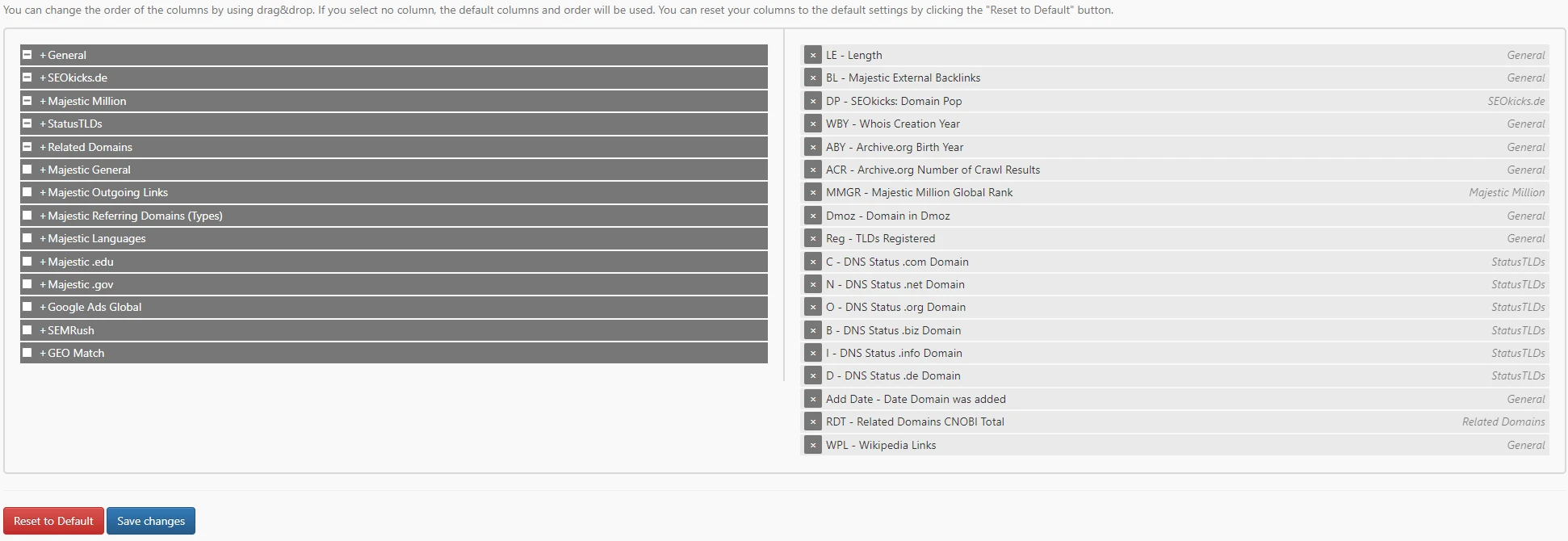
Column Manager
In the Column Manager you choose which data appears in the columns of your domain lists.
Extra tools
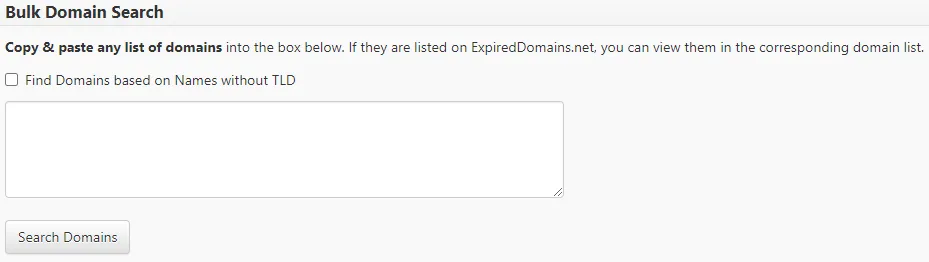
Bulk Domain Search
The Bulk Domain Search tool tells you in which ExpiredDomains lists the domains you add are listed. This shows whether a domain is available, taken or for sale. If you enable "Find Domains based on Names without TLD" and type a name without an extension, it creates lists for all extensions of that name.
TLD Reg Count
The TLD Reg Count tool shows for which TLDs a name is registered. Enter a keyword to find all domains that contain it and see in how many TLDs the name is registered.

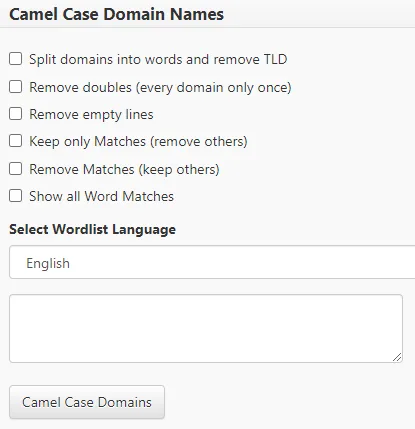
Camel Case Domain Names
The Camel Case tool finds the words inside domains and capitalises the first letter of each word. For example, mehmeterguden.com becomes MehmetErguden.com.
Related Domains
The Related Domains tool lists the domains that begin or end with the word you enter.

Frequently asked questions
What is an expired domain?
An expired domain is a domain whose owner did not renew the registration. After the renewal period and the grace periods, the domain is deleted and can be registered by someone else. See Domain Life Cycle Explained for each stage.
Is ExpiredDomains.net free?
Signing up only takes the registration form and an email confirmation, as described above. This guide does not cover pricing, so check the site for what each plan includes.
How do I check the history of an expired domain?
A domain was owned by someone before you, so look at its backlinks, its age and what it was used for before you register it. The SEO and Majestic filters help you set minimum values for backlinks and links.
What is the difference between Deleted, Caught and Pending Delete domains?
Deleted Domains have been dropped and can be registered. Caught Domains are domains that are full but listed for sale on domain sales platforms. Pending Delete domains are about to be deleted, so you can plan to register or backorder them.
Can I get alerts for domains I like?
Add them to your Watchlist with the ☆ icon and save your filters in Saved Searches. Use Only new Domains to see what has appeared since your last search.